
Scheduling, time zones, and cross-posting
Scheduling and publishing in PostPost.ai are always free and unlimited — AI credits are never spent on them.
Two ways a post gets a time#
- You pick it. Open the post and choose the exact date and time with the schedule picker.
- The plan picks it. When PostPost.ai plans a week, every slot is booked at a real time before you ever see it, and approving the post schedules it at that time. See Approve your first week.
Everything lands on the Calendar — month or week view, planned slots and scheduled posts together.
Posting times: which hours the planner may use#
The Posting times button on the calendar (the clock, next to Week/Month) opens your week as a grid of days and hours. Every cell starts on: PostPost.ai never invents a posting time you didn’t allow, and a brand that never opens this menu has the whole week available.
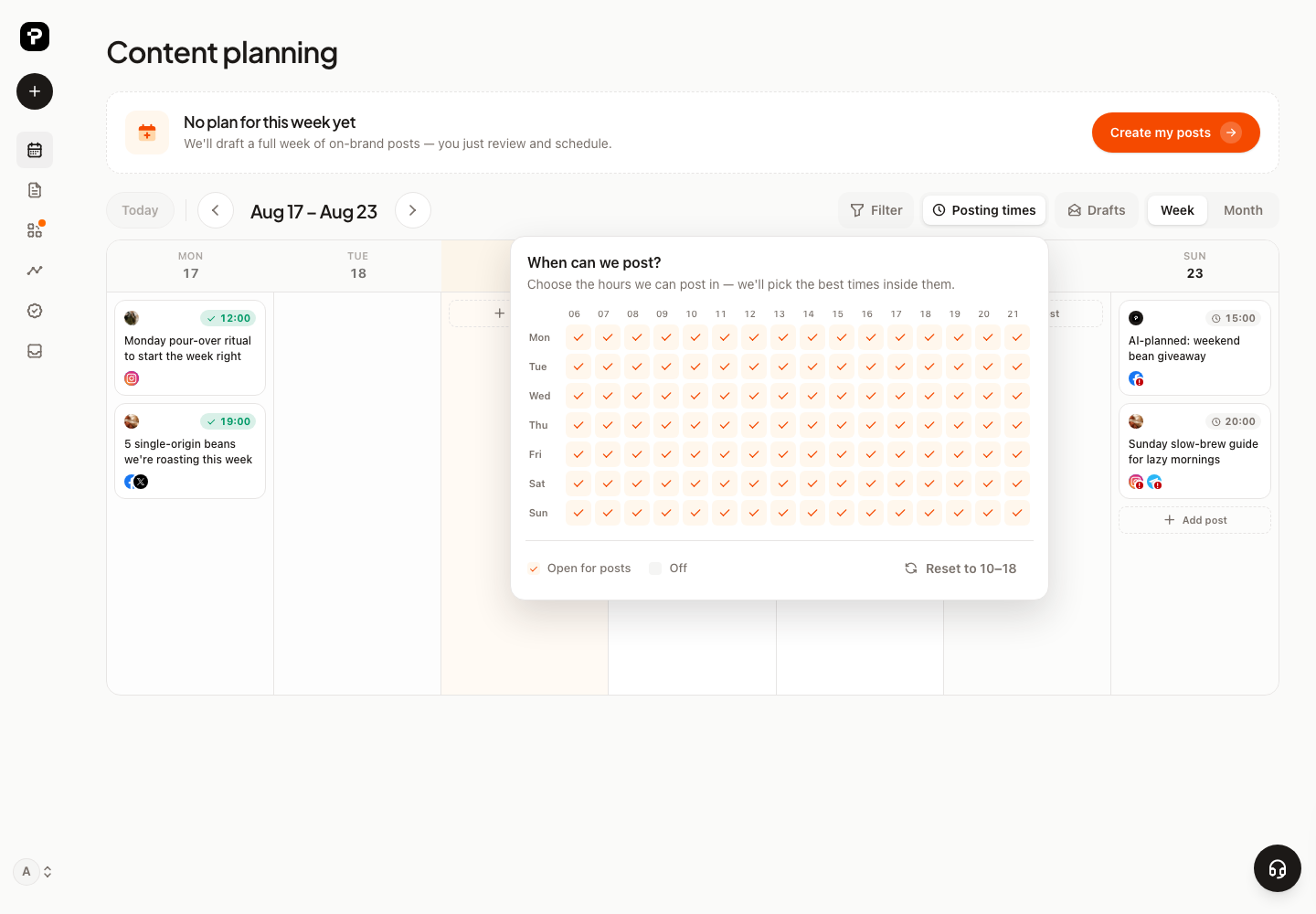
Switch cells off to keep planning out of them — Sunday off, or only 10:00–18:00 on weekdays. Two things worth knowing:
- The grid governs new planning only. A post already scheduled in an hour you switch off still publishes at that time.
- It’s a permission, not a queue. PostPost.ai doesn’t drip finished drafts into the next open cell; the planner books times inside what you allow, and a post you schedule by hand can be at any time you like.
The two time zones#
This is the part that confuses people, so it’s worth being exact. PostPost.ai keeps two:
| Which zone | Where you set it | |
|---|---|---|
| Your brand’s time zone | Publishing times, the plan, the posting-times grid, analytics | Brand Settings → Tell us about your company → Time zone |
| Your own time zone | How times are displayed to you, and how the times you type are read | Settings → Timezone (your account) |
So a post scheduled for “18:00” goes out at 18:00 where the brand is — that’s the audience’s local evening. If you’re travelling, or the agency and the client are in different countries, the calendar shows that same post in your time, and typing “18:00” into the picker means 18:00 in your zone. The two only look identical when both zones match.
Cross-posting to several channels#
One post can go to any number of your connected channels:
- Select the channels when creating or editing the post.
- PostPost.ai creates a separate variant per channel — each with its own caption you can tweak individually (shorter for X, more formal for LinkedIn), and its own media set where the network is fussier.
- Toggle any channel on or off before publishing; a channel toggled off keeps its caption for later.
Each channel publishes independently: if one network has a hiccup, your other channels still go out on time, and the post shows exactly what happened on each one.
Publishing statuses#
A post is a draft until it has a time, then scheduled, then publishing while the sends are in flight, then published or failed. “Failed” is always per channel — the post lists each channel’s own result and the exact reason a network gave. See When a post doesn’t publish.