
When a post doesn't publish
Publishing happens per channel, so a post rarely fails as a whole — one network refuses and the others go out on time. Open the post and every channel shows its own result.
Where to look#
Open the post (from the Calendar, the posts list, or the email we send you). Under the schedule you’ll find one row per channel with:
- its status — posted, posting, or failed;
- the exact reason the network gave, in its own words, not a generic “something went wrong”;
- a View link for a channel that published, straight to the live post;
- the actions that can fix it: Retry, Shorten, Reconnect.
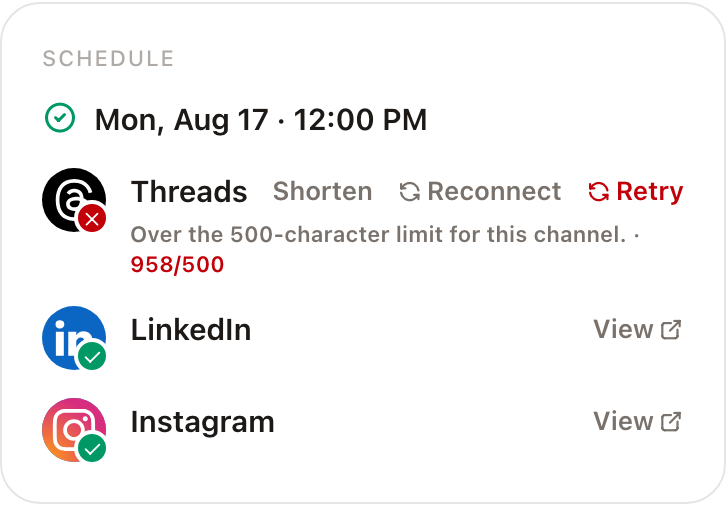
If any channel fails, PostPost.ai emails the post’s author (and the brand owner, when they’re a different person) with the affected channels — you don’t have to be watching the app.
Common reasons, and what to do#
“This channel wasn’t connected when the post went out.” The connection died between scheduling and publishing, so the send never reached the network. Reconnect the channel (Reconnect on the row takes you straight there), then press Retry. The post is not re-sent automatically — see Why a channel says “Needs reconnect” for why that’s deliberate.
A caption over the network’s limit. The row shows the length against the limit, and Shorten rewrites that channel’s caption to fit, leaving your other channels untouched.
A file that channel refuses. Wrong format or aspect ratio for that network, or over its per-file cap. Usually the rest of the media went out and the row says how many items posted; swap or crop that one file and retry. See What each channel accepts.
A network error or rate limit. Sometimes the network is simply busy, or briefly refuses a perfectly good post. Press Retry — nothing about your post changed.
“Published through another connection — nothing to retry.” That channel already published this post through a connection that has since been replaced. There is nothing to fix; retrying would post it twice.
Retrying#
- Retry on a channel row re-sends that channel only, leaving every other channel exactly as it is.
- Retry N failed channels at the bottom of a failed post re-sends all of them at once.
- A retry always uses the channel’s current connection, so reconnecting first is enough — you don’t need to rebuild the post.
- Retries never duplicate a channel that already published. A channel that got through is never sent again, even when you retry the post as a whole.
If a post never even tried#
A scheduled post whose only targeted channel was never connected doesn’t fail — it goes back to draft with its time removed, and the post’s history records why. Connect the channel and schedule it again.
Still stuck? Open the support chat inside the app. The assistant answers from these articles and hands the conversation to a human whenever the answer needs someone to look at your account.